Skip to content

Eg 2 Editing values in the table

Example#2 with tables – Editing values in the table

Start with the code from Example#1

  1. Add an “editable” property to Name.java with corresponding getter and setter.
Name
3
4
5
6
7
public class Name {
    private String first;
    private String last;
    boolean canEdit;
}

canEdit
29
30
31
32
33
34
35
public boolean isCanEdit() {
    return canEdit;
}

public void setCanEdit(boolean canEdit) {
    this.canEdit = canEdit;
}
  1. Add a method in the TableData.java to allow the property to be set to true. The method takes a Name object as an argument and it calls the setCanEdit method on the Name object.
editName()
public String editName(Name name){
    name.setCanEdit(true);
    return null;
}
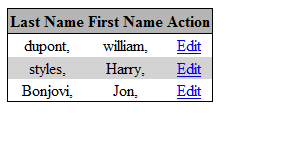
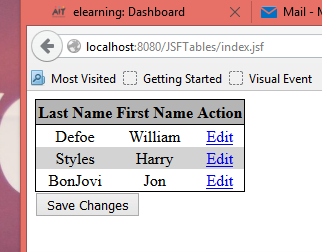
  1. Assign an “Edit” link to the end of each row in the table. If clicked, the editName method will be called in the TableData object. This in turn will set set “canEdit” = true. Conditional rendering is introduced here. The “Edit” is only rendered (displayed) when the canEdit property of the name object is set to false.
xhtml
 3
 4
 5
 6
 7
 8
 9
10
11
12
13
14
15
16
17
18
19
20
<h:dataTable value="#{tableData.names}" var="name"
             styleClass="nameTable"
             headerClass="nameTableHeader"
             rowClasses="nameTableOddRow,nameTableEvenRow">
    <h:column>
        <f:facet name="header">Last Name</f:facet>
        #{name.last},
    </h:column>
    <h:column>
        <f:facet name="header">First Name</f:facet>
        #{name.first},
    </h:column>
    <h:column>
        <f:facet name="header">Action</f:facet>
        <h:commandLink value="Edit" action="#{tableData.editName(name)}"
                       rendered="#{not name.canEdit}" />
    </h:column>
</h:dataTable>

Edit Link

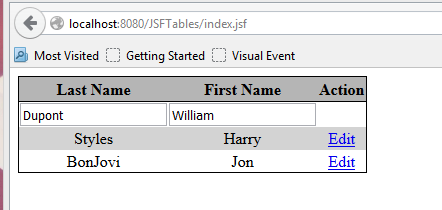
  1. In the JSF page, if “editable”=true, display the input text box for edit. Otherwise display the normal output text.
xhtml
 3
 4
 5
 6
 7
 8
 9
10
11
12
13
14
15
16
17
18
19
20
21
22
23
24
<h:form>
    <h:dataTable value="#{tableData.names}" var="name"
                 styleClass="nameTable"
                 headerClass="nameTableHeader"
                 rowClasses="nameTableOddRow,nameTableEvenRow">
        <h:column>
            <f:facet name="header">Last Name</f:facet>
            <h:inputText value="#{name.last}" rendered="#{name.canEdit}"/>
            <h:outputText value="#{name.last}" rendered="#{not name.canEdit}"/>
        </h:column>
        <h:column>
            <f:facet name="header">First Name</f:facet>
            <h:inputText value="#{name.first}" rendered="#{name.canEdit}"/>
            <h:outputText value="#{name.first}" rendered="#{not name.canEdit}"/>
        </h:column>
        <h:column>
            <f:facet name="header">Action</f:facet>
            <h:commandLink value="Edit" action="#{tableData.editName(name)}"
                           rendered="#{not name.canEdit}" />
        </h:column>
    </h:dataTable>
</h:form>

Display Input Text Box

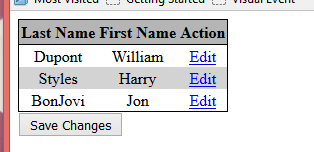
  1. Provide a button below the table to save the changes (after the table and before the closing form tag).
xhtml
        </h:column>
    </h:dataTable>
    <h:commandButton value="Save Changes" action="#{tableData.saveAction}" />
</h:form>

A method saveAction must be added to the TableData backing bean. The saveAction method sets the canEdit back to false for all objects in the list.

saveAction()
3
4
5
6
7
8
public String saveAction(){
    for (Name name: names){
        name.setCanEdit(false);
    }
    return null;
}

Save Changes

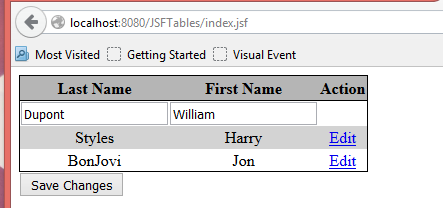
Click the Edit button

Edit Button

Edit the values and Press Save

Edit and Save