Lab#37 Authorization Code grant type flow
Step#1 Create a new client in KeyCloak
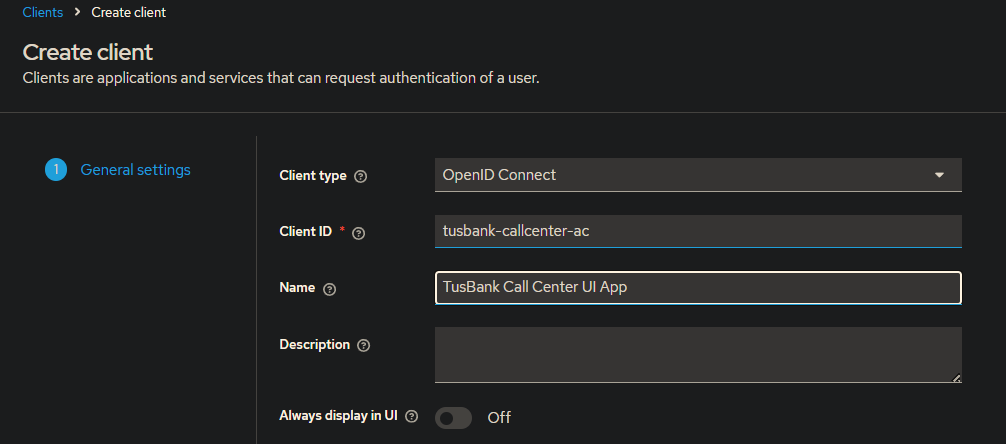
Figure 1. Keycloak New Client
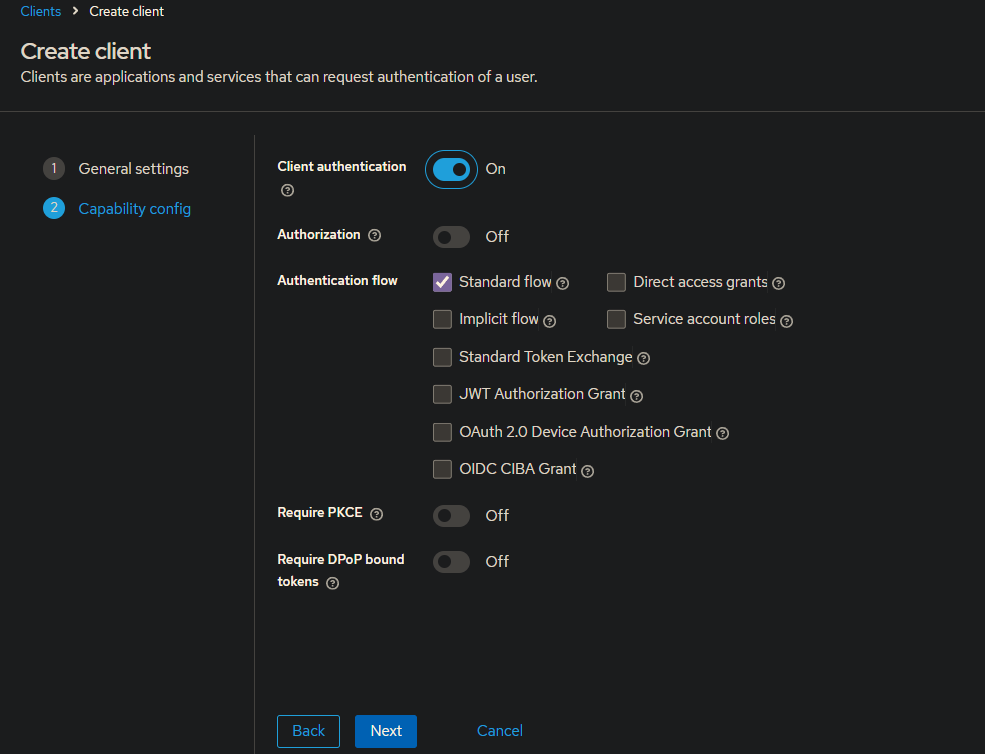
Figure 2. Create Client 2 Capability Config
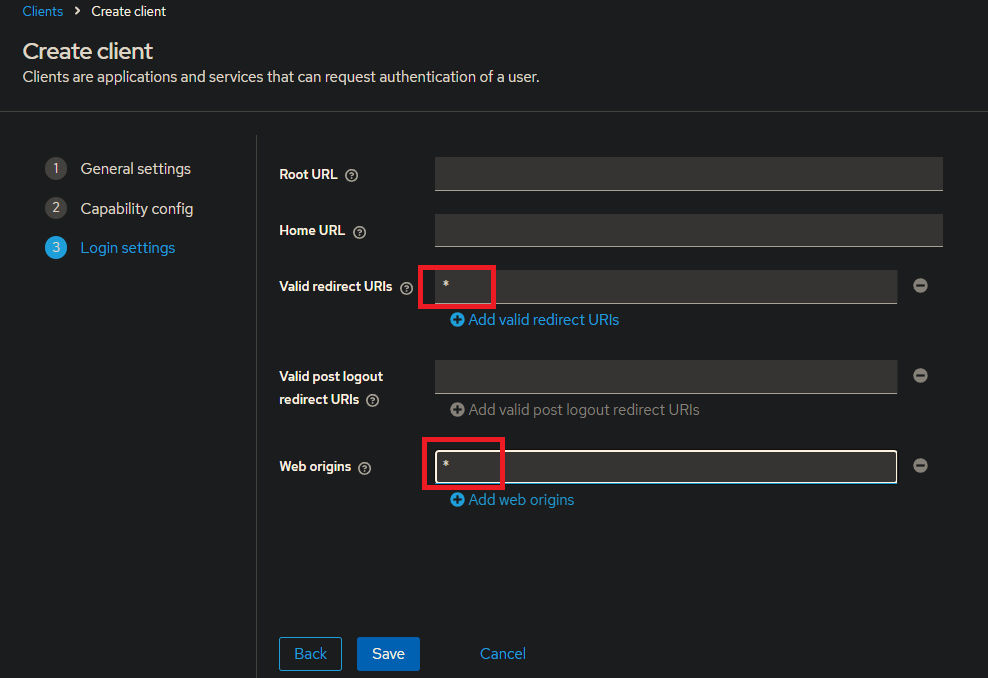
Figure 3. Create Client 3 Login Settings
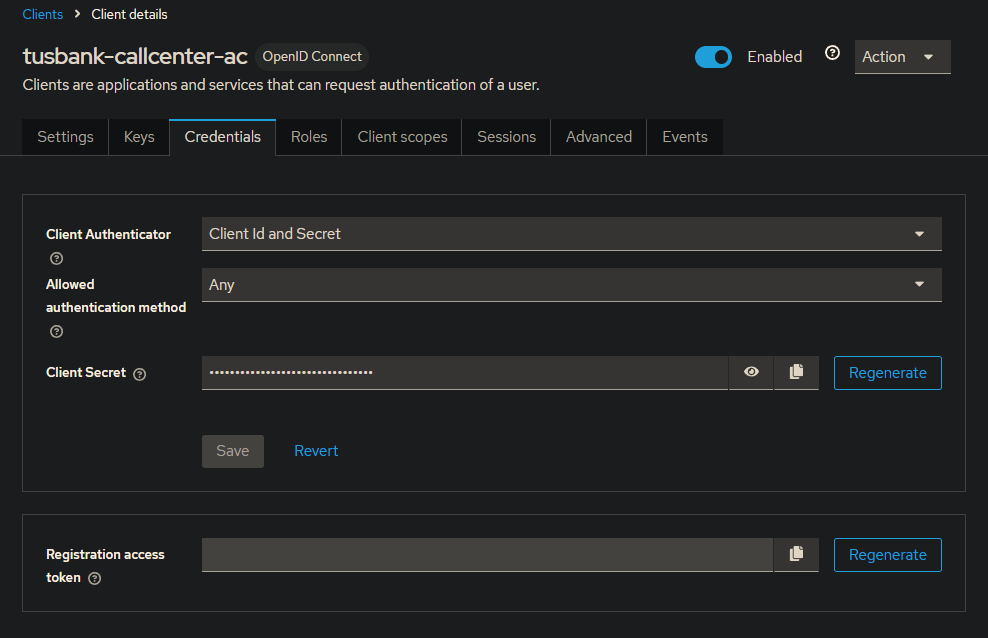
Figure 4. Credentials
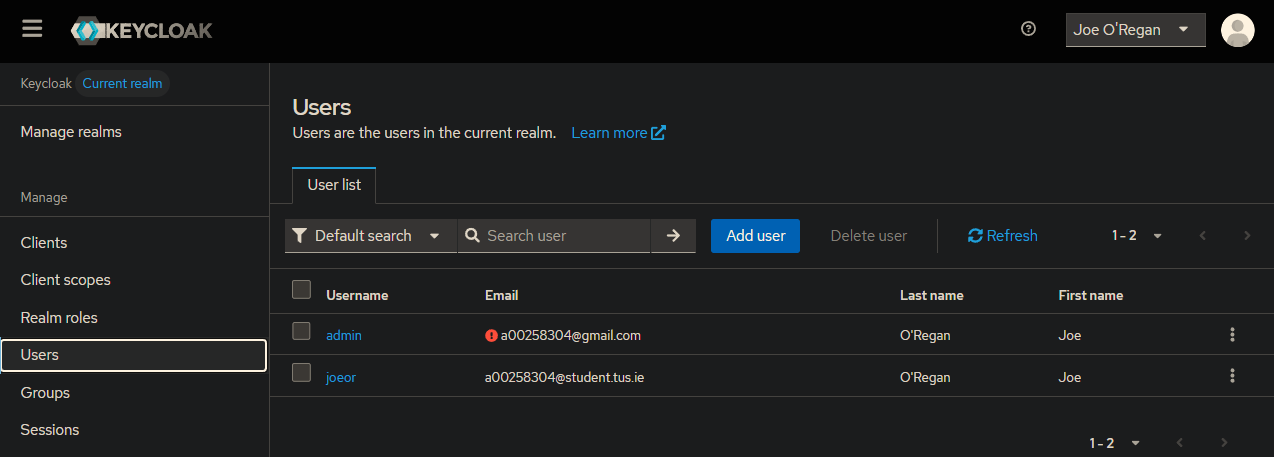
Figure 5. Users
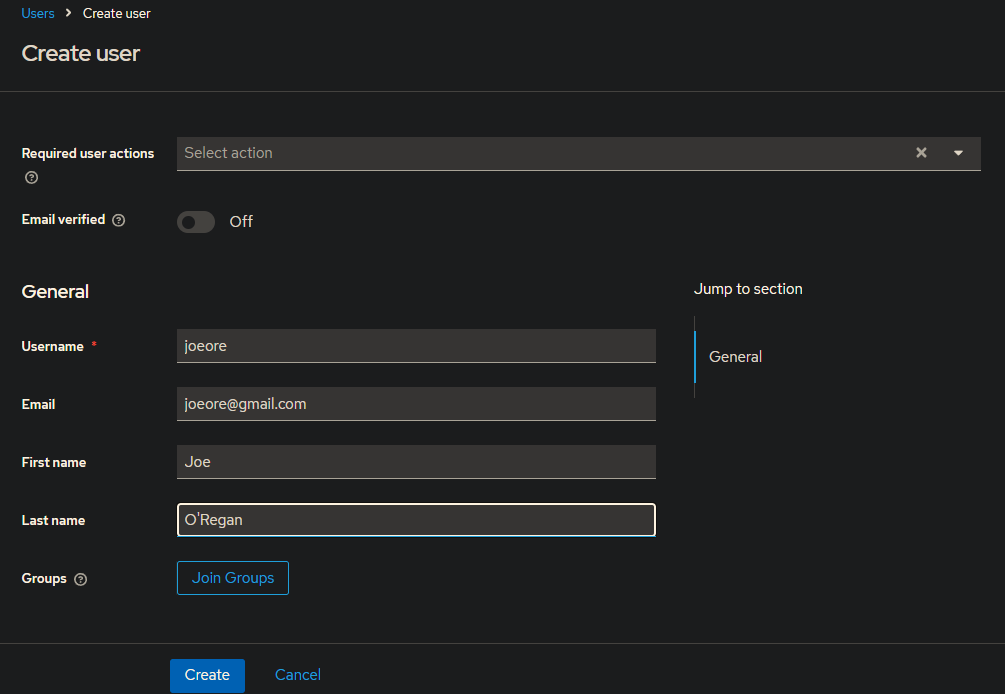
Figure 6. Create User
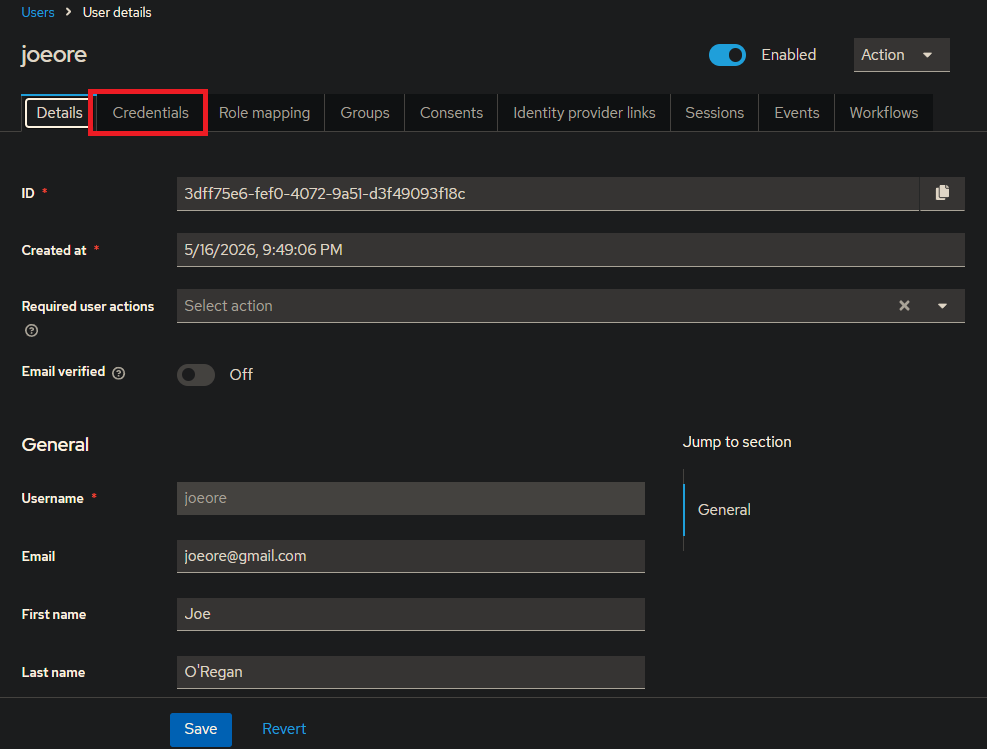
Figure 7. Details
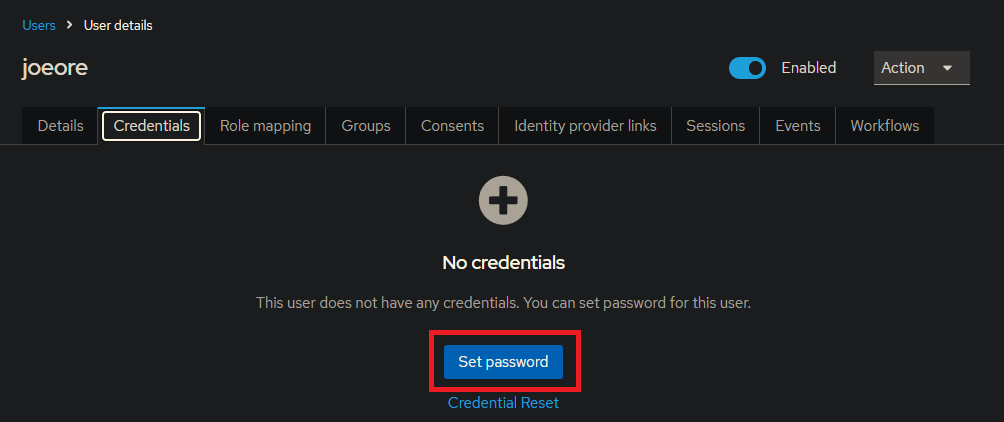
Figure 8. Credentials.png
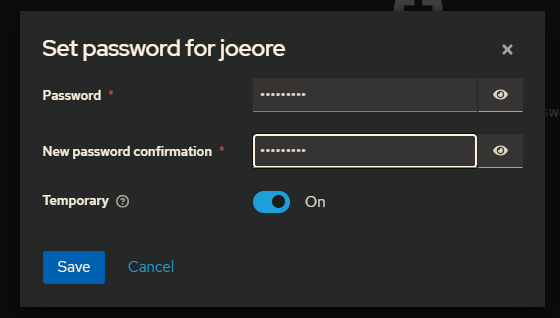
Figure 9. Set Password
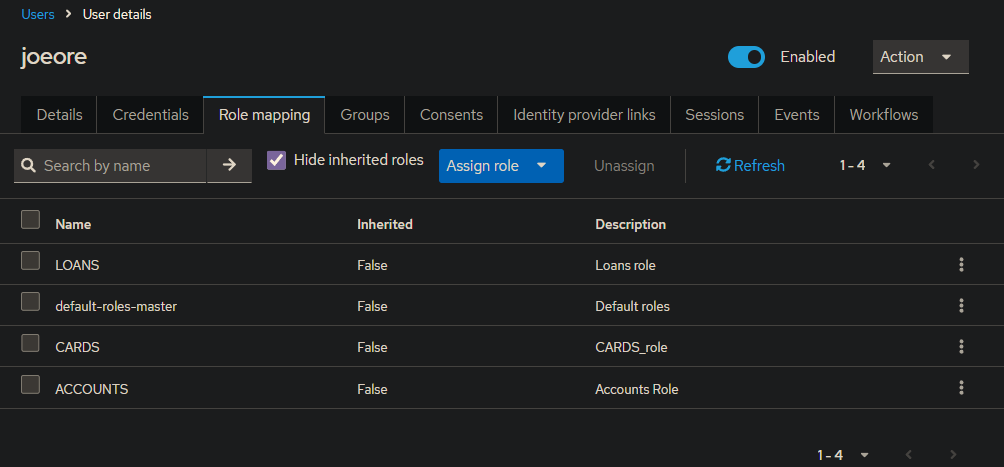
Figure 10. Users
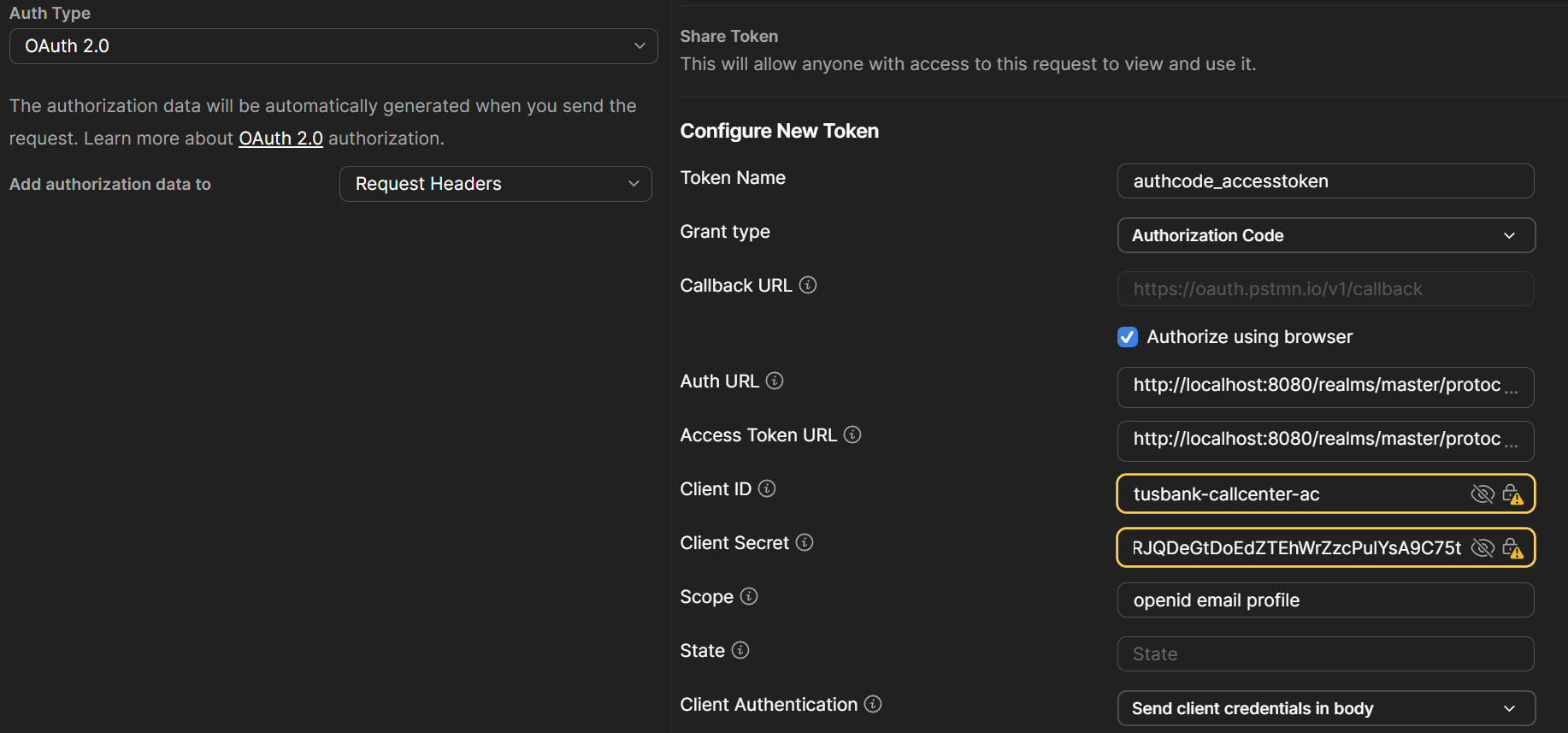
Figure 11. Configure New Token
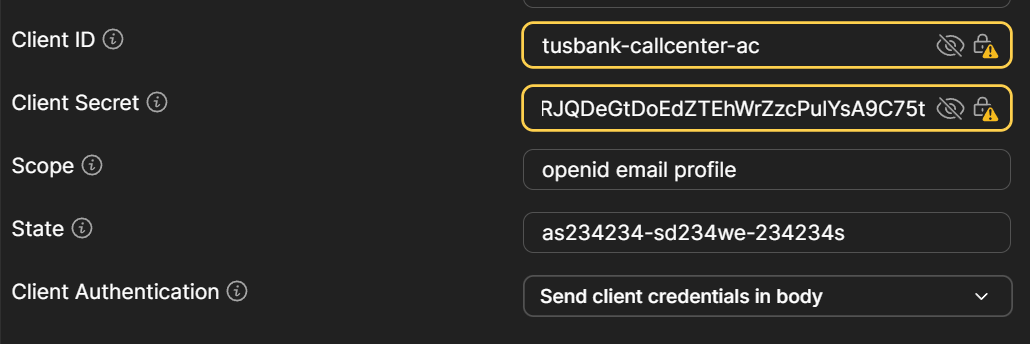
Figure 12. Configure New Token
Close KeyCloak browser session or change your default browser to bing temporarily if you have issues.
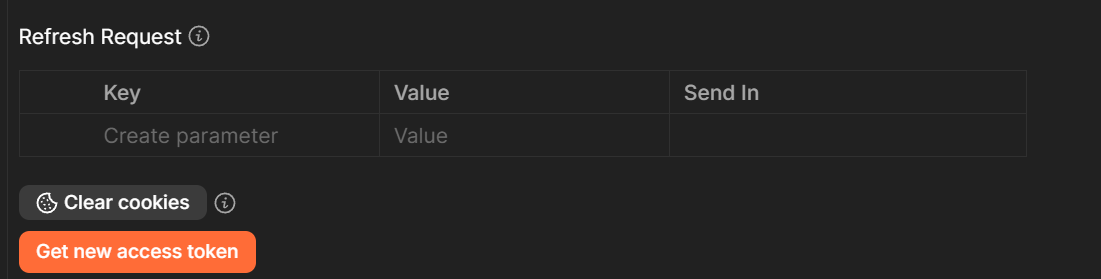
Figure 13. Get New Access Token
Generate a new access token in Postman. You will be re-directed to KeyCloak to login. Enter the login details for the user that you created (not your Keycloak login).
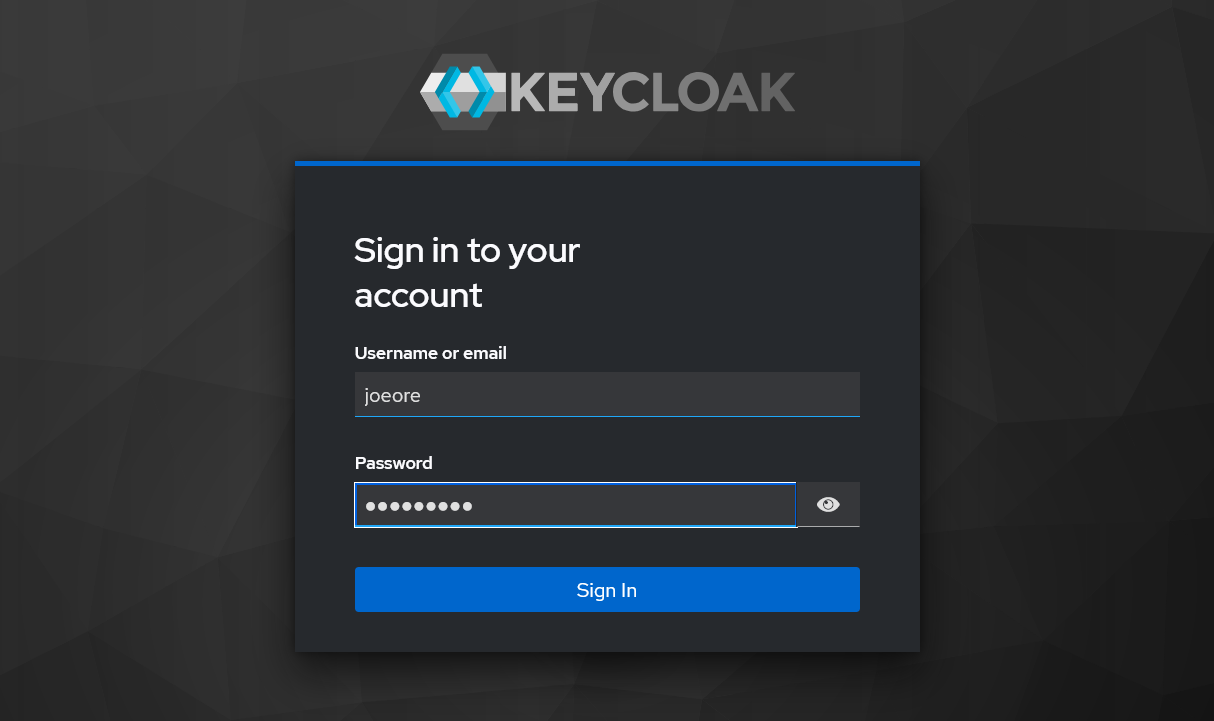
Figure 14. Keycloak Login
You will be re-directed back to Postman
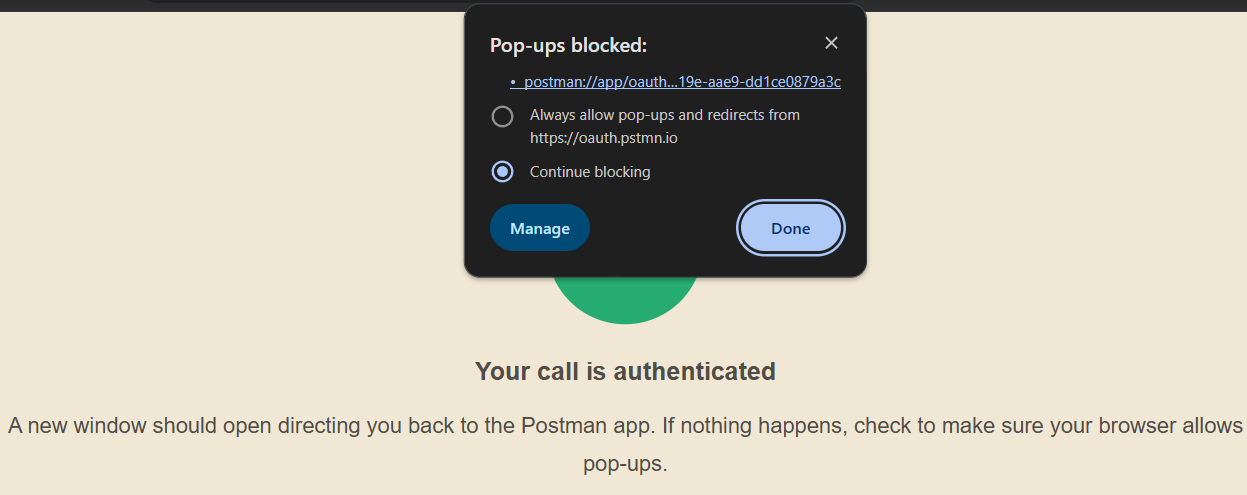
Figure 15. Postman Re-direct
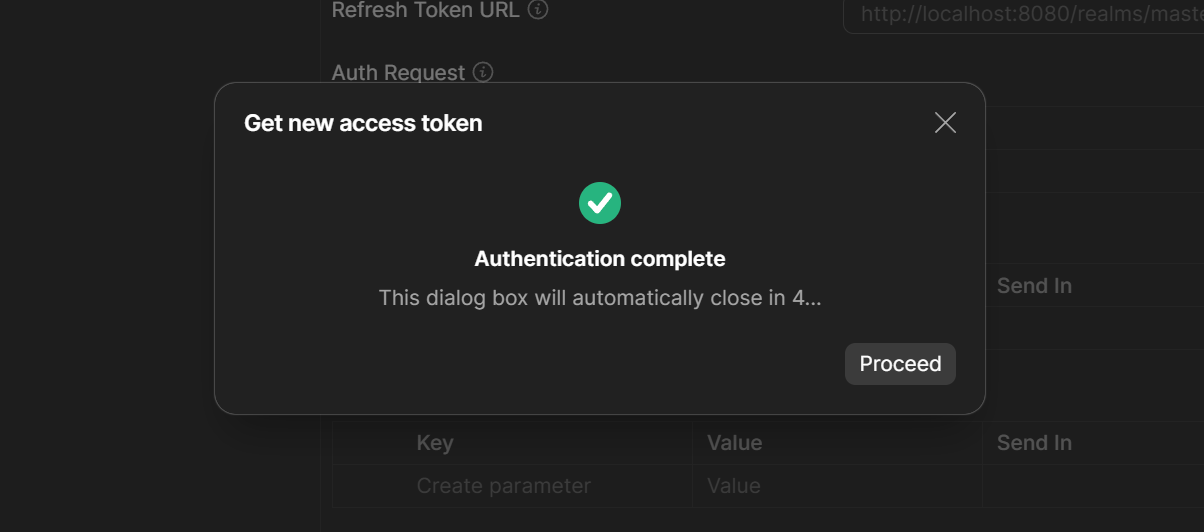
Figure 16. Get New Access Token
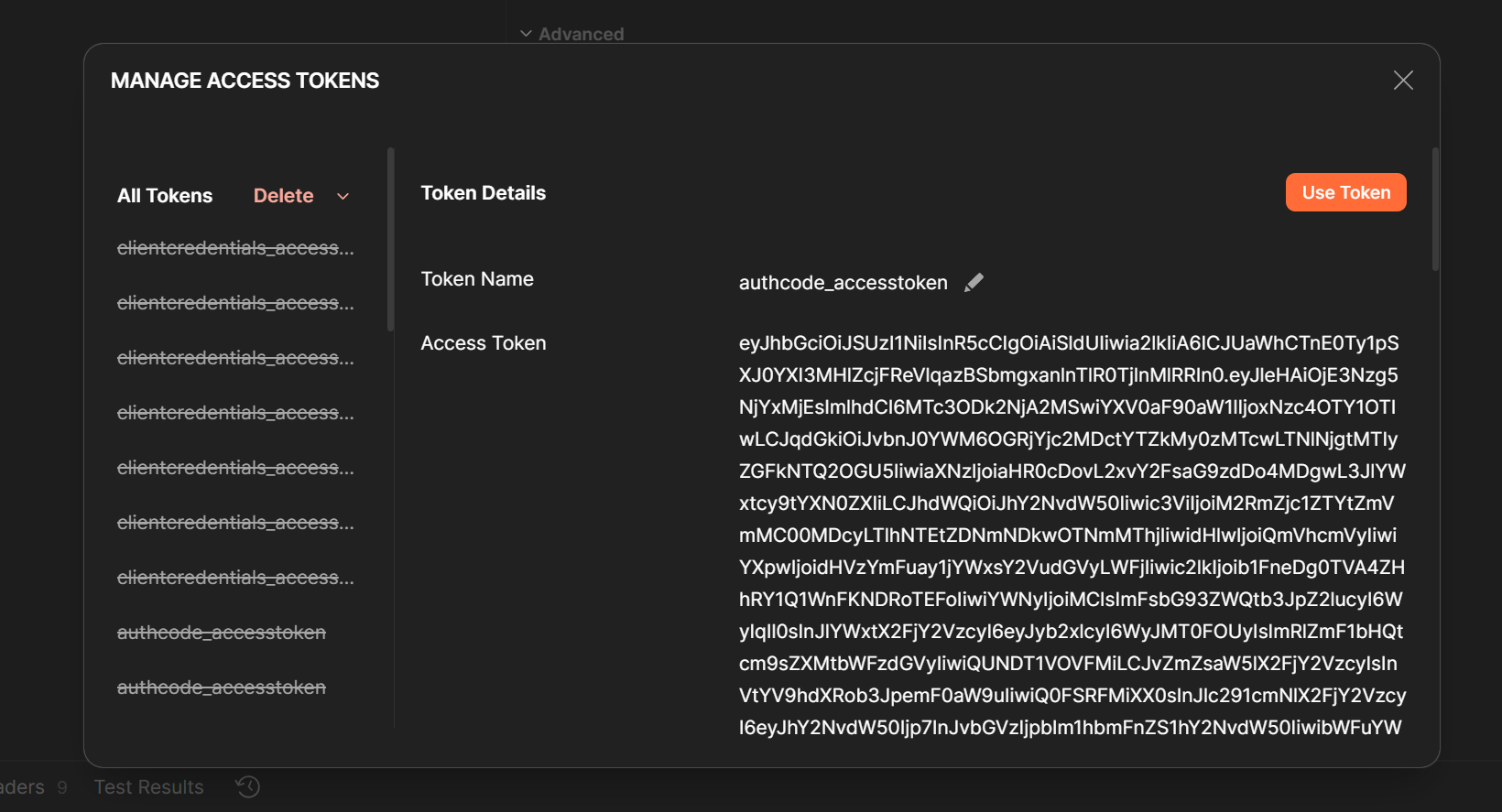
Figure 17. Use Token
POST
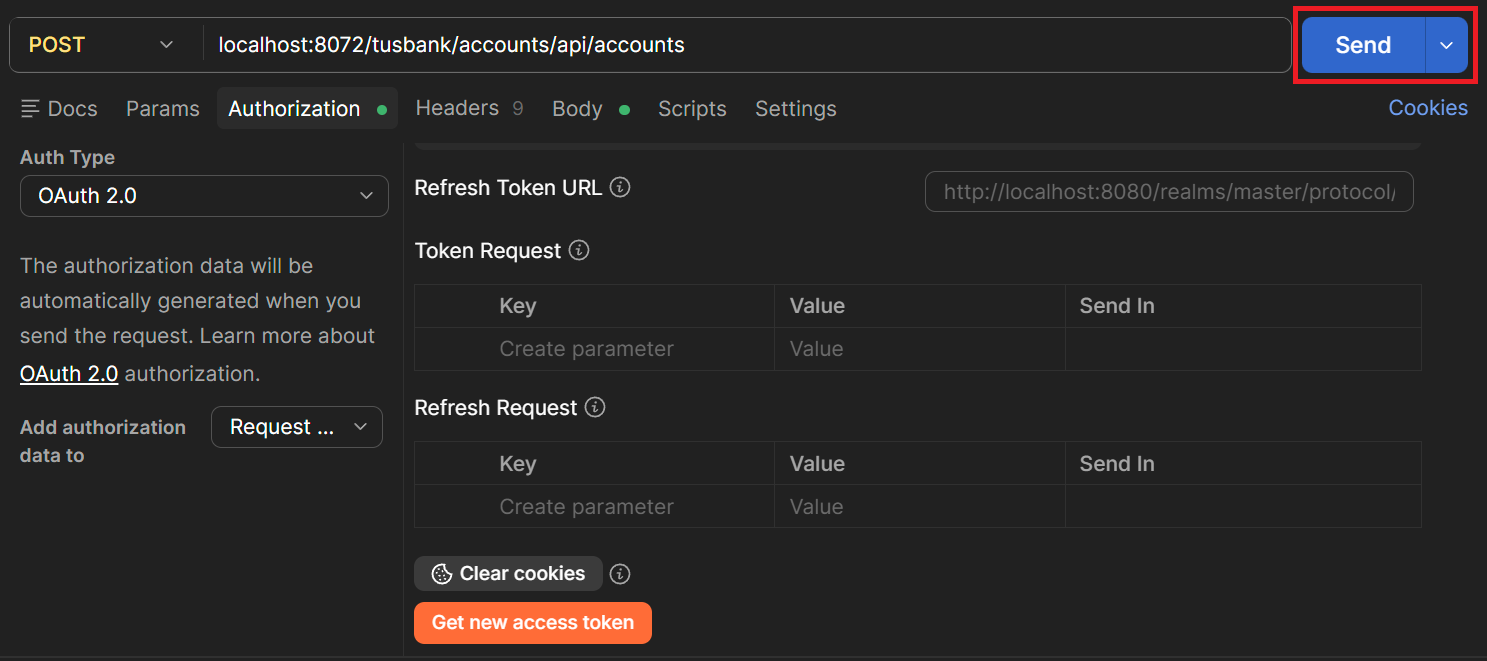
Figure 18. Create New Account
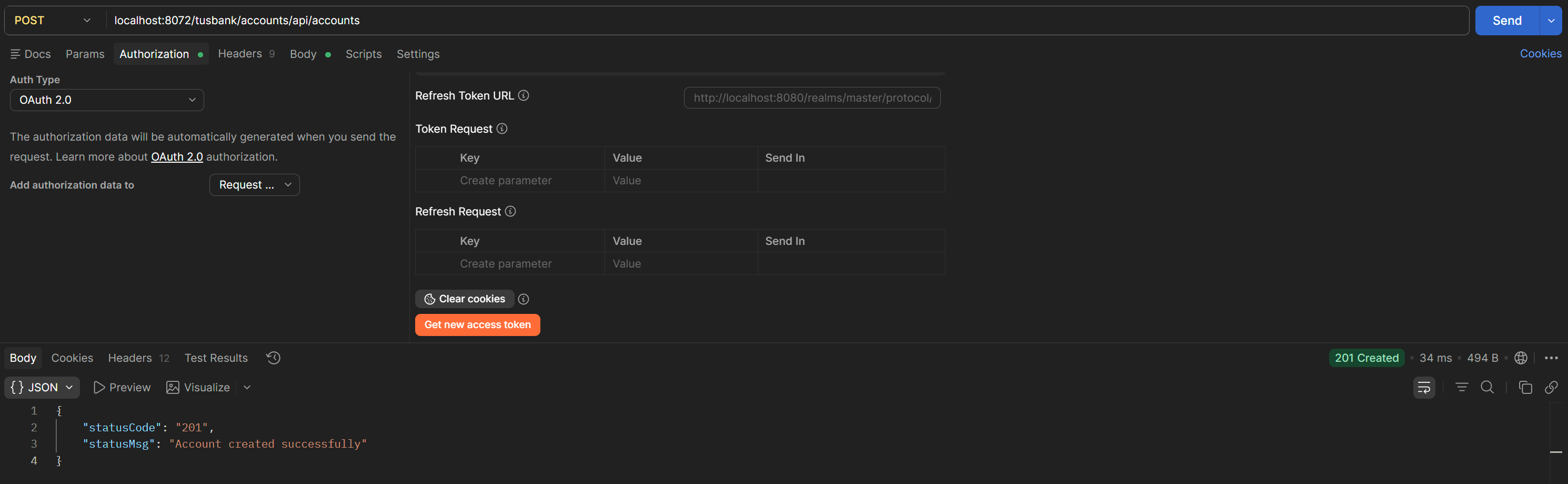
Figure 19. Status 201 Account Created Successfully